How to Remove a Background from Any Image Online in 2026 — Free with DevToolVault's Background Remover
Removing image backgrounds used to mean opening Photoshop, loading a plugin, or hiring a designer. Today, you can do it in seconds from your browser. This guide covers when and why to remove image backgrounds, who benefits most, and how to get the cleanest results using DevToolVault's Background Remover — a fast, free, browser-based tool built for real workflows.
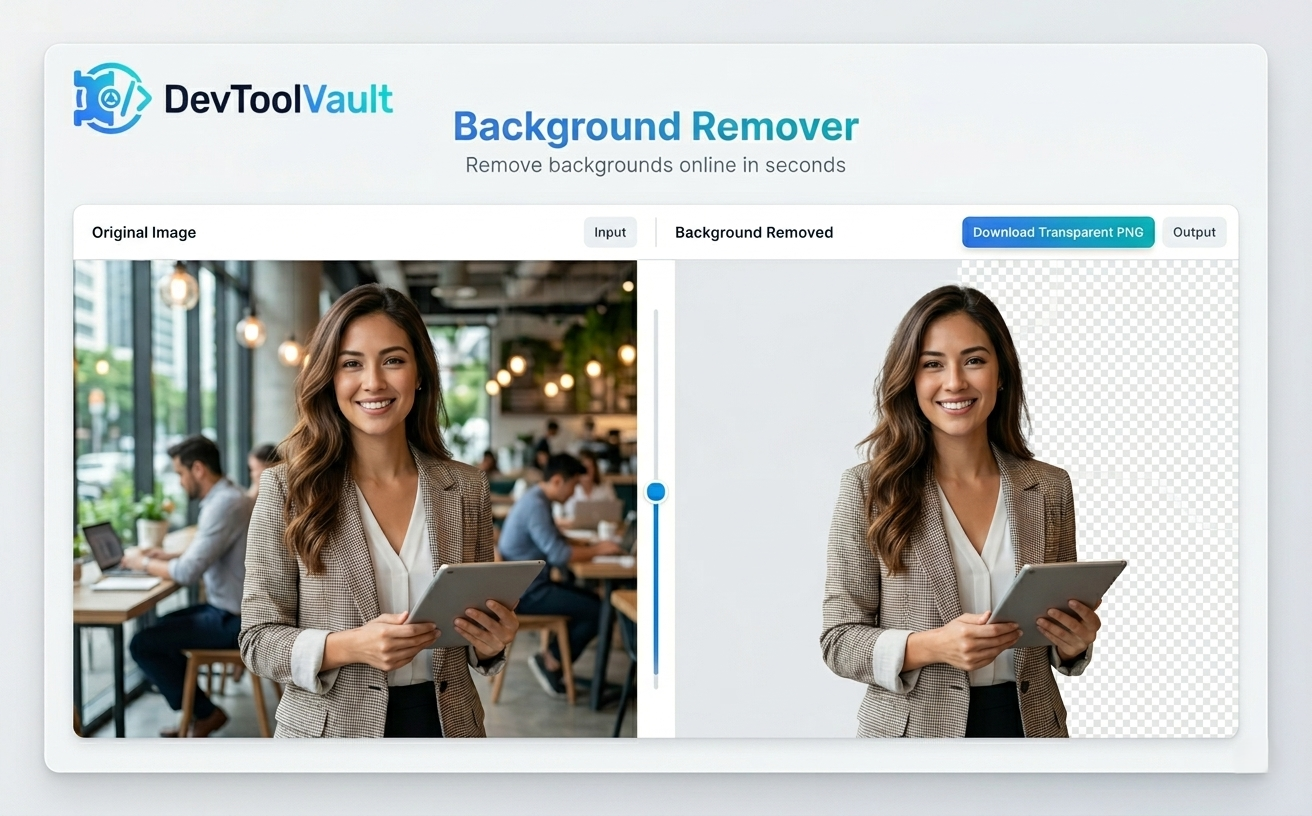
Remove Image Backgrounds in Seconds — No Software Required
Cutting out a background from an image sounds simple until you're actually doing it. The lasso tool in Photoshop takes patience. Third-party plugins need accounts. And most apps assume you have time to spare.
For a lot of people — ecommerce sellers, marketers, social media managers, developers prototyping a UI — that time doesn't exist. You need the background gone. You need it now. And you need the result to look clean enough to use.
That's the problem DevToolVault's Background Remover is designed to solve.
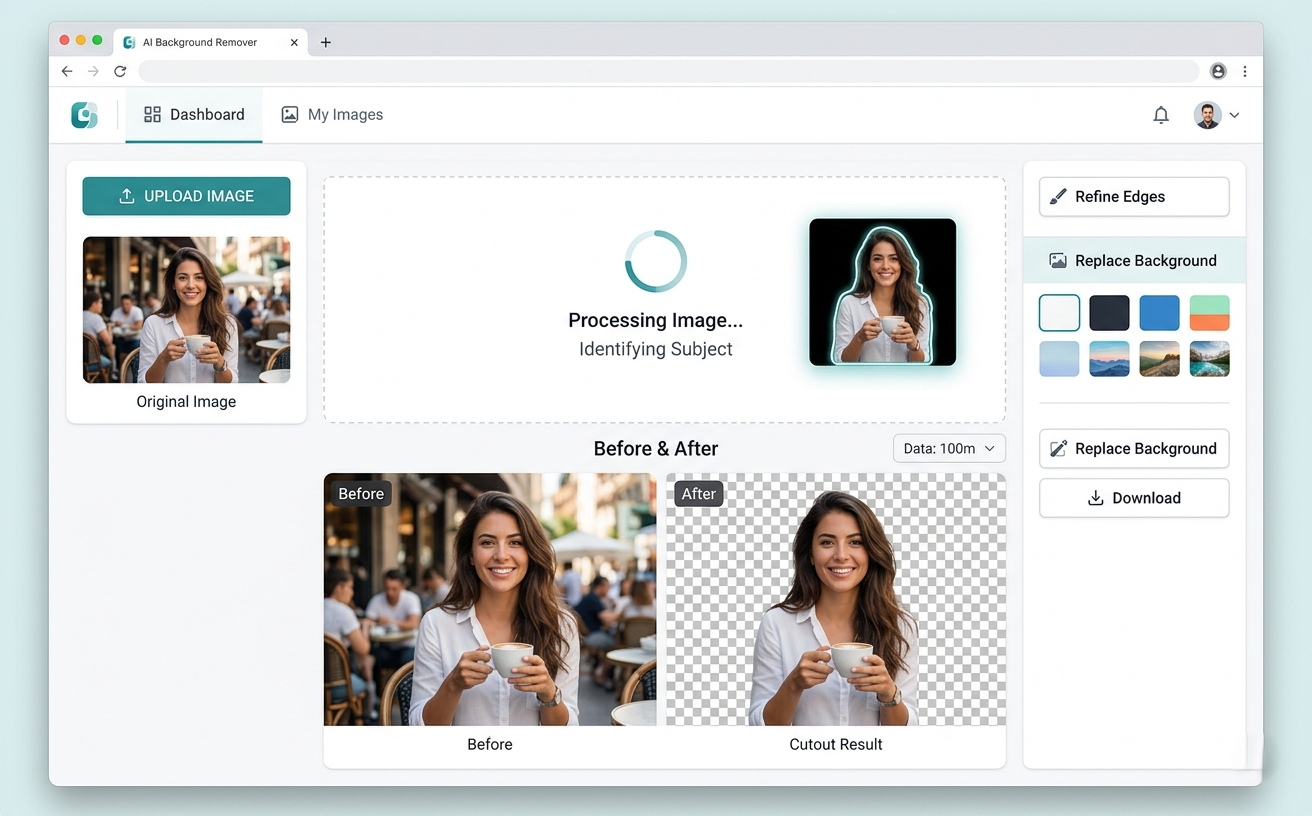
What Is an Online Background Remover?
A background remover is a tool that detects the subject in an image — a person, a product, an object — and strips away everything else, leaving either a transparent PNG or a solid-color background.
Modern browser-based background removers use machine learning to identify edges, separate foreground from background, and apply the cutout automatically. The quality has improved dramatically in the past few years. For most standard use cases — product shots on white, headshots against office walls, logos on simple backgrounds — automated tools now produce results that are genuinely usable without manual cleanup.
The key word is automated. You upload the image. The tool does the work.
When Should You Actually Remove a Background?
Not every image needs a background removal. But there are specific situations where it makes an immediate difference:
You're listing products online. Marketplace platforms like Amazon, Etsy, and Google Shopping all recommend or require white or neutral backgrounds for product images. If your product was photographed in a messy space or with inconsistent lighting, removing the background is the fastest path to a clean, professional-looking listing.
You're building a presentation or campaign asset. Cutting someone or something out of its environment lets you place it on any background you want — a branded slide, a campaign visual, a web banner. Compositing is much easier when your subject is already isolated.
You need a transparent profile picture or logo. If a PNG with a transparent background is the deliverable — for a design file, an app, a web layout — removing the background is step one. There's no way around it.
You're cleaning up a headshot. Portrait photos taken in informal settings often have distracting backgrounds. A plain gray or blurred replacement looks significantly more polished, especially for LinkedIn, team pages, or press materials.
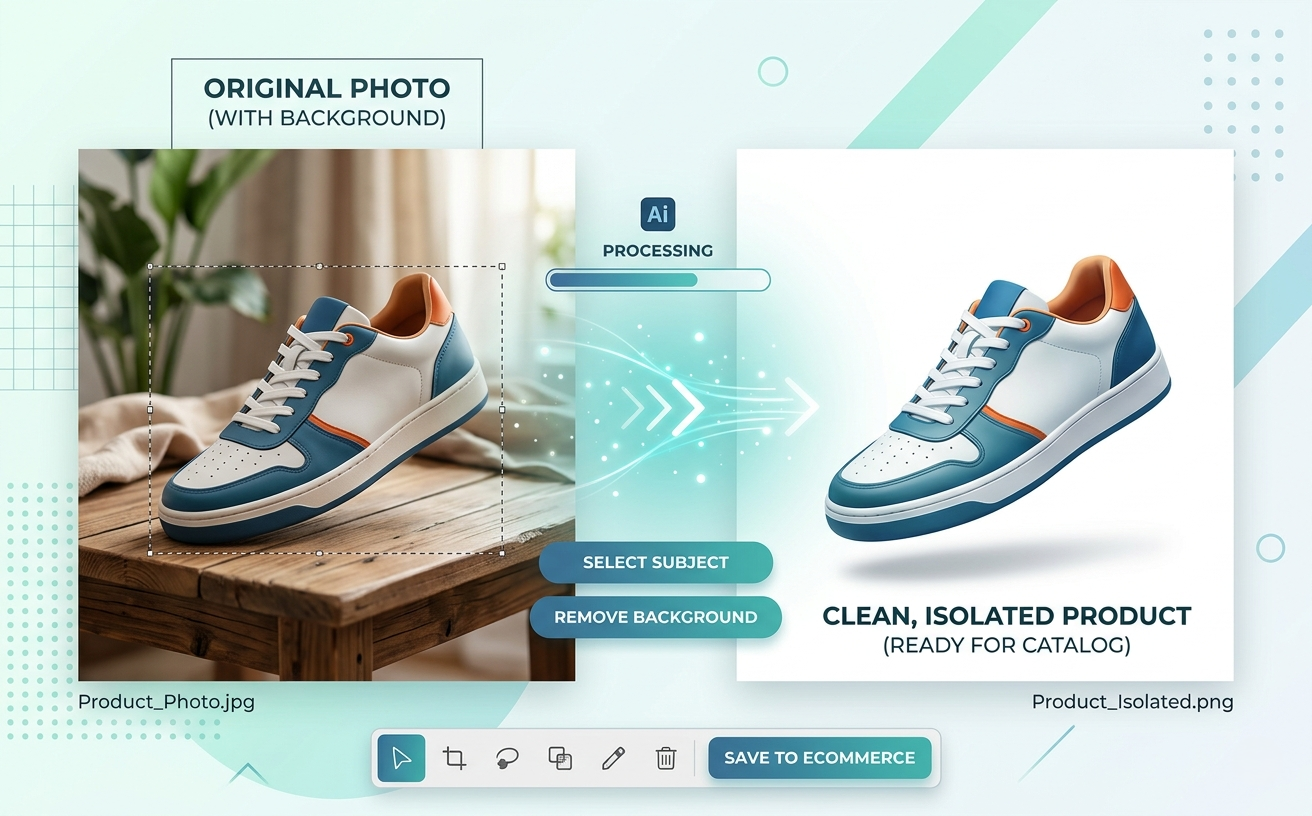
Common Use Cases for Background Removal
Here's where background removal actually earns its keep across different types of work:
Ecommerce and Product Photography
This is the highest-volume use case by a wide margin. Independent sellers, small brands, and even product teams at larger companies regularly shoot product photos that need background cleanup before going live. Automated background removal handles the bulk of the work — especially for simple objects like apparel, accessories, electronics, and home goods.
Marketing and Campaign Graphics
Designers building ad creatives, social media graphics, or landing page visuals need subjects isolated from their original context. Removing the background is often step one in any composite workflow.
Profile Pictures and Headshots
HR teams, recruiters, and professionals updating their own profiles reach for background removers regularly. A clean, consistent background makes a headshot look intentional rather than improvised.
Presentations and Decks
Dropping a photo into a slide only to have its white box clash with the slide background is a small frustration most people have run into. A transparent PNG sidesteps the problem entirely.
UI Mockups and Prototyping
Developers and designers building interfaces often need real-looking image assets without the clutter of an actual background. A product shot or illustration with a transparent background slots cleanly into any layout.
How to Remove a Background Online with DevToolVault
Using the DevToolVault Background Remover requires no account, no software download, and no design experience.
Here's how it works:
Go to the tool. Navigate to
devtoolvault.com/tools/background-removerin any modern browser.Upload your image. Click to upload or drag the file directly onto the interface. JPG and PNG formats are both supported.
Let the tool process it. The background detection runs automatically. For most images, processing takes a few seconds.
Download the result. You'll get a PNG file with the background removed. If the original had a transparent background in some areas, those are preserved.
That's it. No account creation, no watermarks on the output, no waiting for an email with a download link.
Tips for Getting a Cleaner Result
Automated background removal is good. It's not magic. The quality of your output depends heavily on the quality of your input.
High contrast between subject and background helps. A red product on a white background is easy for the model to separate. A gray hoodie photographed against a gray wall is not.
Clean edges make a difference. Flyaway hair, fur, transparent fabrics, and reflective surfaces are the hardest categories for any automated tool to handle cleanly. For portraits with complex hair, expect to do some light manual refinement if precision matters.
Resolution matters. Low-resolution images produce softer, less accurate cutouts. If you have a choice, use the highest-resolution version of the image.
Test with a colored background after. Drop the output PNG onto a colored background before finalizing — it's the fastest way to spot rough edges or halo effects that weren't obvious on the white output.
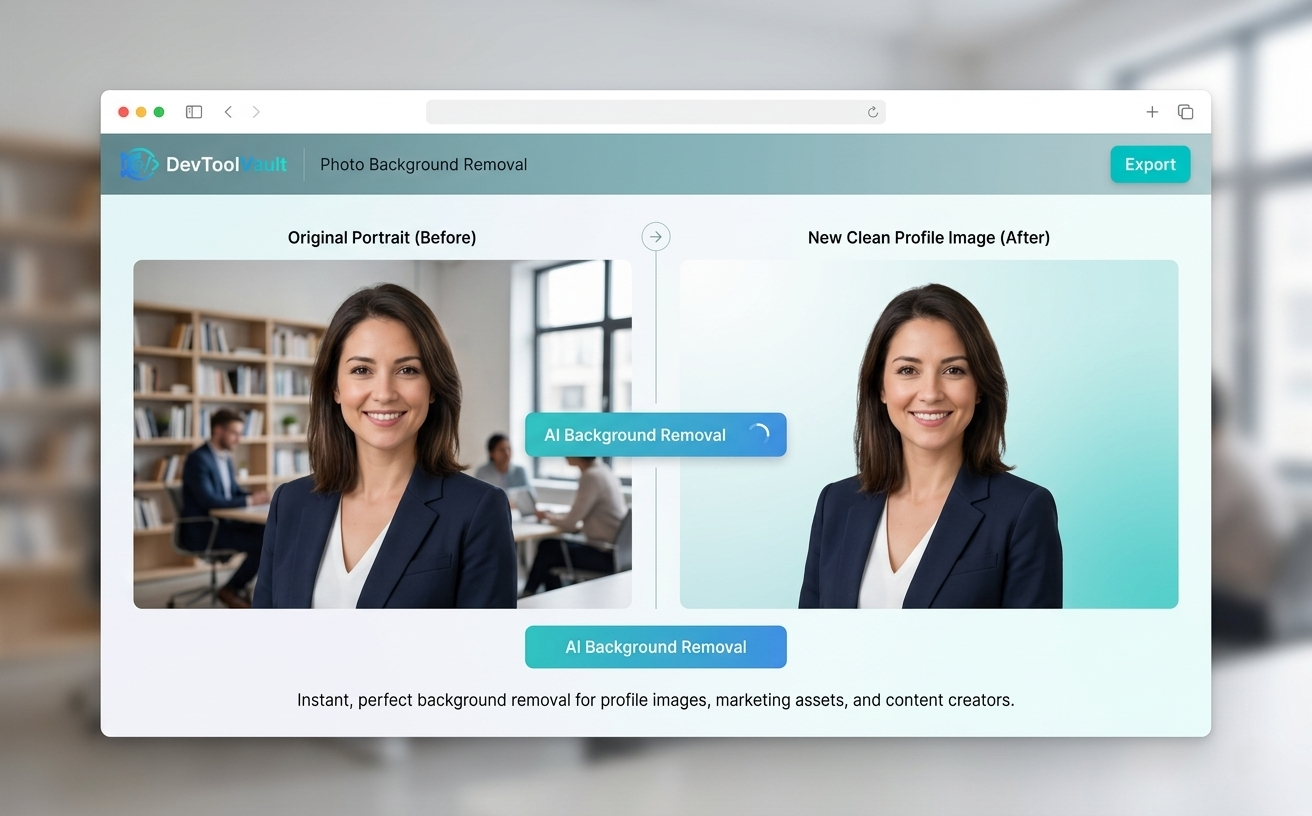
Background Remover vs. Manual Editing — When Each Makes Sense
There's a real tradeoff here, and it's worth being honest about it.
For routine, high-volume work — product images, profile pictures, simple composites — an automated tool like DevToolVault's Background Remover is faster, cheaper, and good enough. If you're processing twenty product photos before a launch, manual editing isn't a realistic option.
For precision work — high-stakes campaign images, professional photography, complex subjects with intricate edges — manual editing in Photoshop or Affinity Photo gives you more control. A skilled retoucher will produce a cleaner result on difficult images.
The practical answer for most teams: use the automated tool first. If the result needs adjustment, do targeted manual cleanup on the output file. You'll spend a fraction of the time versus starting from scratch.
Final Thoughts
Background removal is one of those tasks that sounds trivial but slows down a surprising number of workflows when you don't have the right tool for it. A browser-based background remover that works without setup, accounts, or cost is genuinely useful — not just as a convenience, but as a reliable part of how image work gets done.
DevToolVault's Background Remover is straightforward to use and built for exactly these kinds of quick, practical tasks. If you have an image that needs a clean background removal, it's the fastest way to get there.
Try it now: devtoolvault.com/tools/background-remover
Commonly Asked Question:
Q: Is DevToolVault's Background Remover free to use?
A: Yes. You can use the Background Remover directly in your browser without creating an account or paying anything.
Q: What image formats does the tool support?
A: JPG and PNG files are supported. The output is delivered as a PNG with a transparent background.
Q: How accurate is automated background removal?
A: For most standard use cases — product photos, headshots, logos on plain backgrounds — accuracy is very good. Images with complex edges (hair, fur, transparent objects) may benefit from light manual refinement afterward.
Q: Do I need to install any software or plugins?
A: No. The tool runs entirely in your browser. There's nothing to download or install.
Q: Can I use the output images for commercial projects?
A: The background remover processes images you upload. Commercial use of the resulting images is subject to the rights you hold in the original image — the tool itself doesn't impose restrictions on what you do with your output.
Q: What's the best type of image for background removal?
A: Images with clear contrast between the subject and background produce the cleanest results. Good lighting and a high resolution also improve accuracy.
Q: How is this different from Photoshop's Remove Background feature?
A: Both use automated detection. The difference is accessibility — DevToolVault's tool works in a browser without needing Photoshop installed, making it faster and more accessible for non-designers or anyone without a Creative Cloud subscription.
Q: Can I remove backgrounds from multiple images at once?
A: The tool currently processes one image at a time. For bulk processing needs, repeated single-image uploads are the current workflow.